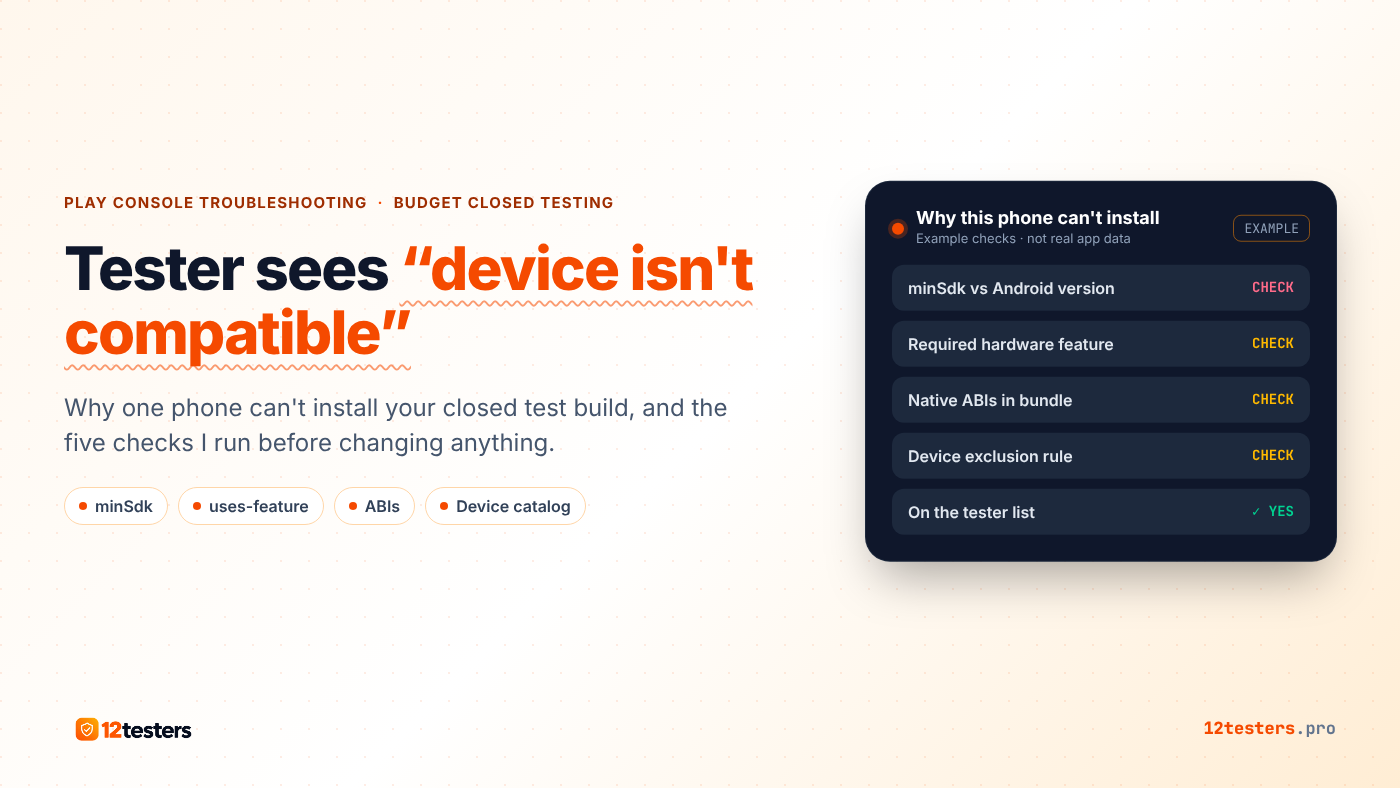
A tester messaged me on day two of a closed test: the opt-in worked, the Play Store page opened, and then it said "Your device isn't compatible with this version." Everyone else could install. That one phone couldn't, and if a tester can't install, they're not much use to the test.
Compatibility on Google Play comes from your app bundle and your Play Console settings, not from the tester. So the fix is almost always on the developer side. Here's the order I go through it.
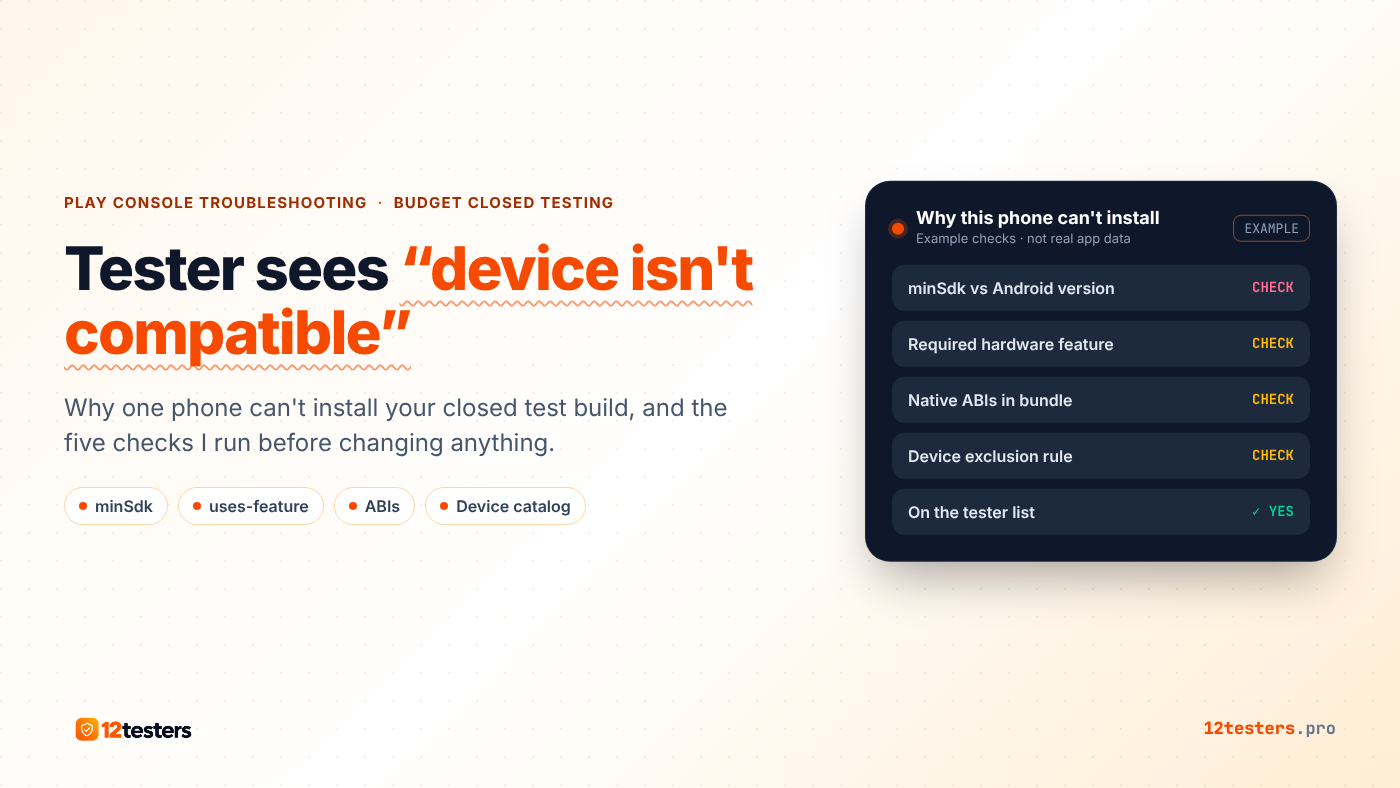
The usual suspects, in the order I check them. Example states only.
1. minSdk is higher than the tester's Android version
This is the most common one. If your minSdk in build.gradle is, say, 28 and the tester's phone runs an older Android version, Play hides the install button and shows the compatibility message. Ask the tester for their Android version (Settings, About phone) and compare. If you don't need a newer API, lowering minSdk and uploading a new version code is the fix.
2. A required hardware feature in the manifest
Every <uses-feature> in your merged manifest is treated as required unless it says android:required="false". A camera, NFC or a specific sensor you only use on one screen can lock out phones that don't have it. Libraries can add these too, so check the merged manifest in Android Studio, not just your own file. Permissions can also imply features, for example camera permission implies a camera.
3. Native libraries for only some CPU types
If your app ships native code (a game engine, an SDK with .so files) and you only built for arm64-v8a, phones that need another ABI won't be offered the app. Look inside your bundle with App Bundle Explorer in Play Console to see which ABIs are actually included.
4. A device exclusion rule you forgot about
Play Console has a device catalog where you can exclude specific devices or whole groups, for example by RAM or Android version. I once excluded low-memory phones for an earlier app and copied the setup without thinking. Open the device catalog, search the tester's phone model, and see whether it's marked as supported or excluded and why. Google notes that changes to device exclusion rules aren't held back by managed publishing, so a fix there doesn't wait for "Publish changes".
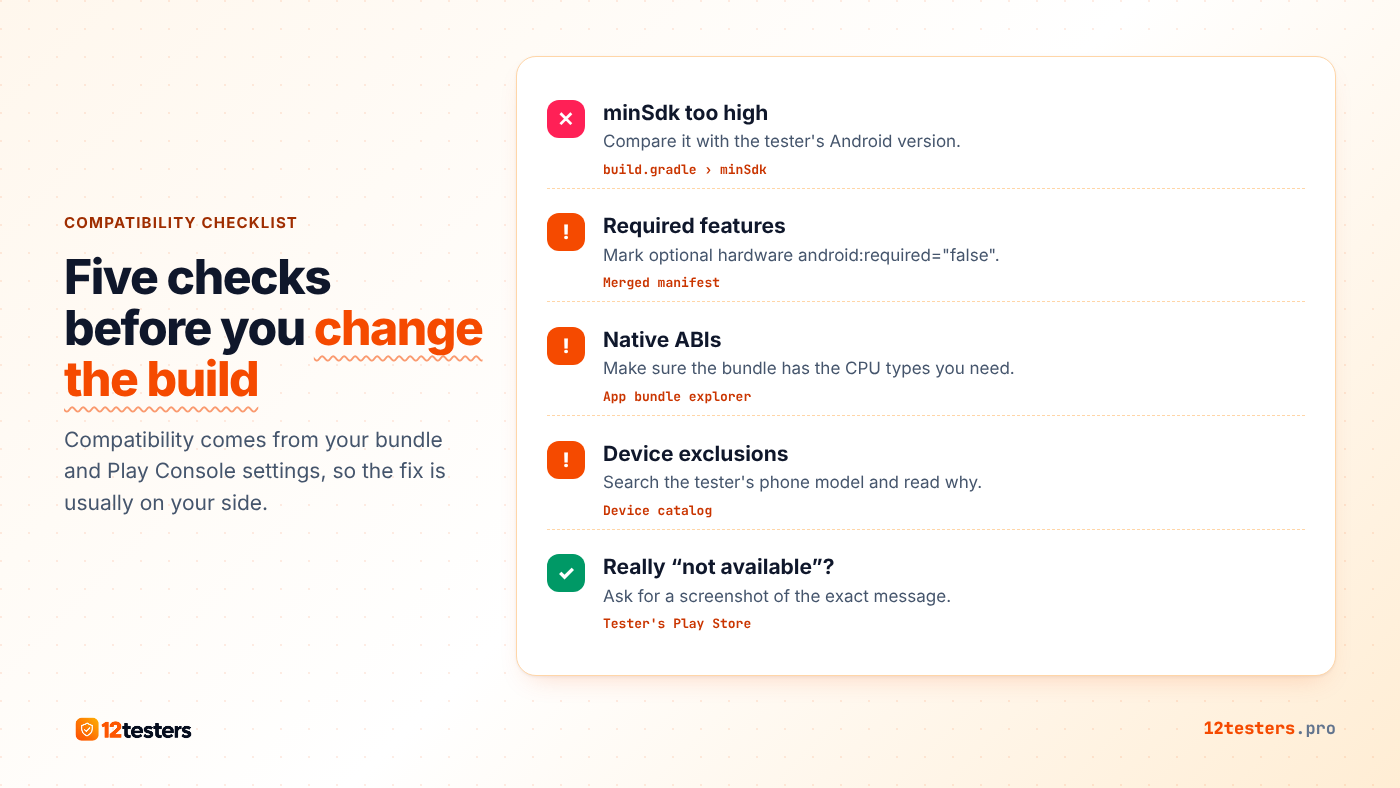
Where each check lives in Android Studio and Play Console.
5. It's not compatibility at all
Sometimes the tester reads "not available" and reports it as "not compatible". These are different. "Not available" usually means the account isn't on the tester list, they opted in with another Google account, or the release isn't published to the closed track yet. Ask for a screenshot of the exact message before changing your build.
What this does to the 14 days
Google's rule for personal developer accounts created after November 13, 2023 asks for at least 12 testers opted in continuously for at least 14 days before you apply for production. A tester who can't install still sits on your list, but if they give up and opt out, they stop counting, and if they opt out and back in the 14 days have to be consecutive. So I fix compatibility in the first day or two, not on day ten.
My rule now: before I share the opt-in link, I look up two or three real tester phones in the device catalog. It takes five minutes and saves a restart.
When you just need enough testers who can install
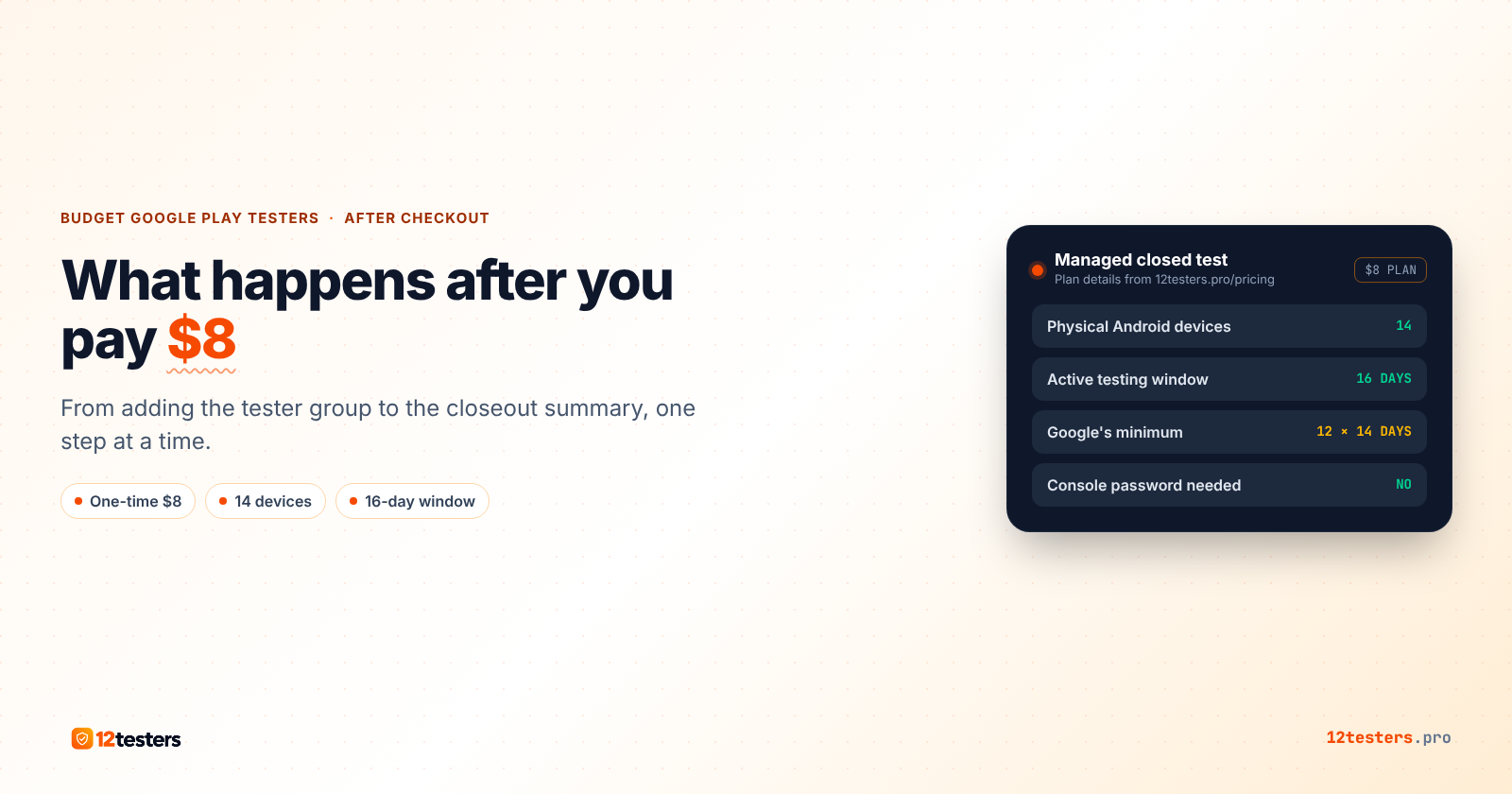
If your own circle is mostly the same few phones, or you can't reach 12 people at all, 12testers runs budget Google Play closed testing for $8 per app: 14 physical Android devices across multiple manufacturers and Android versions join through a Google Group on your Testers tab, monitored over a 16-day window. You don't share your Play Console password. Google still decides on production access, and your app still has to install on those phones, so the checks above come first.
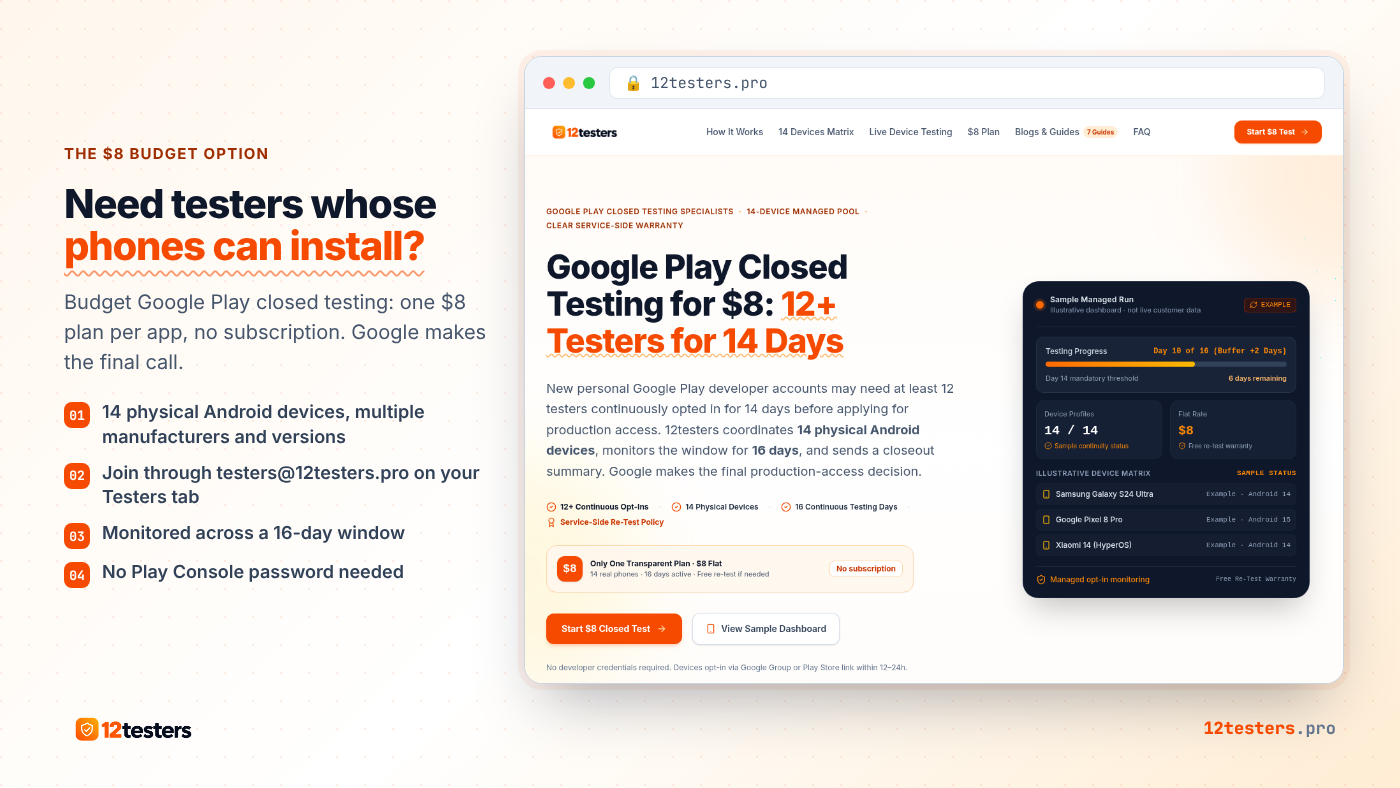
12testers.pro, the $8 closed test option. Screenshot taken October 2026.
Comments
Join the discussionNo comments yet. Be the first to comment.